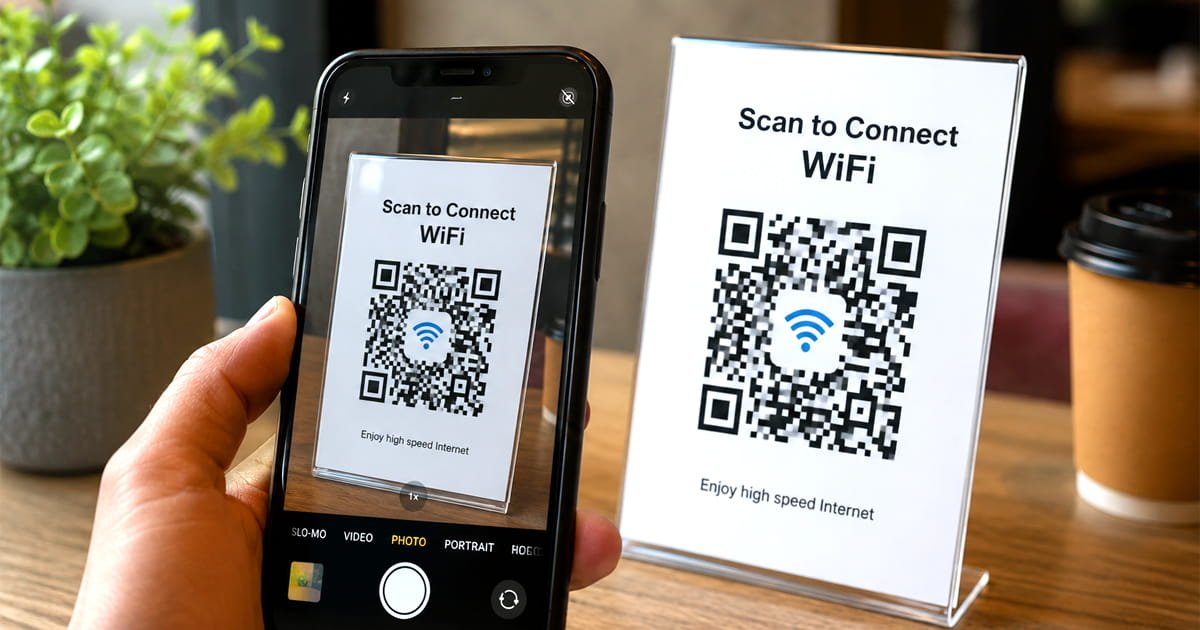
Learn how to create a WiFi QR code so guests can connect without typing a password. Follow these simple steps to create, test, and share your WiFi QR code.
Sharing WiFi with your guests usually means finding your network name, typing a password, and hoping every character of password is correct. A WiFi QR code makes the process much easier.
When someone scans the qr code with a compatible phone, the device can recognize the wireless network information and make connecting much easier.
This easy guide explains how WiFi QR codes work, what information you need, how to create WiFi qr code, and how to test it before sharing or printing it.
What Is a WiFi QR Code?
A WiFi QR code contains the exact information that is needed to identify a wireless network and connect to it.
Depending on the device and operating system, scanning the code can display an option to join the network without requiring the user to manually type the WiFi details.
A typical WiFi QR code may contain:
- WiFi network name (SSID)
- WiFi password
- Security type
- Whether the network is hidden
The QR code doesn't magically bypass the WiFi password. The connection information is simply encoded into the QR symbol.
What You Need Before Creating One
Before generating your WiFi QR code, have these details ready:
| Information What It Means | |
| Network name (SSID) | The name people see when searching for your WiFi |
| Password | The password required to connect |
| Security type | The authentication/security method used by the network |
| Hidden network | Whether the network name is hidden |
Important: Enter the information exactly as it is configured on your router. Even a small mistake can prevent the connection from working.
How to Create a WiFi QR Code
1. Find Your WiFi Details
First of all, check the network name and password you want to share with someone.
If you are not sure about the security type, you can usually find it in your router settings or the network configuration.
2. Open a WiFi QR Code Generator
Use a QR generator that supports WiFi information.
You can use our WiFi QR Code Generator to enter your wireless network details and create the QR code online.
3. Enter the Network Name
Enter your WiFi network's exact SSID.
Pay attention to:
- Capital letters
- Spaces
- Numbers
- Special characters
The information needs to match the actual network.
4. Enter the WiFi Password
Enter the current WiFi password.
If the password contains special characters, don't change or remove them. The generated QR code needs to contain the correct network information.
5. Select the Security Type
Now choose the security option that matches your WiFi network.
Common wireless security standards include WPA/WPA2 and WPA3. The exact options available depend on the generator and network configuration.
If the selected security type doesn't match your network, the QR code may not work correctly.
6. Generate the QR Code
After entering all the exact details, generate the QR code.
Before sharing it with other people, test it yourself first.
How to Test a WiFi QR Code
Testing the qr code is one of the most important step.
Use a phone that is not already connected to the WiFi network if possible.
- Open the phone camera or QR scanner.
- Scan the WiFi QR code.
- Check the network information shown by the phone.
- Select the option to connect.
- Confirm that the device actually connects to the correct network.
If it doesn't work, check the SSID, password and security type again.
Where Can You Use a WiFi QR Code?
WiFi QR codes are particularly useful in places where multiple people need temporary or regular access to a network.
| Location Examples: | |
| Home | Let visitors connect easily |
| Office | Share guest WiFi with visitors |
| Restaurant | Provide customer WiFi |
| Hotel | Help guests connect |
| Cafe | Display WiFi information at tables |
| Event | Give attendees access to guest WiFi |
| Rental property | Include WiFi access with check-in information |
For public locations, consider using a guest network rather than exposing the credentials of your main private network.
What If the WiFi QR Code Doesn't Work?
If scanning does not connect the device, check these things first:
Check the SSID:
Make sure the network name is exactly correct.
Check the password:
Make sure that the password has not changed since the QR code was created.
Check security settings:
Make sure the selected security type matches the router.
Check the network:
Try connecting to the WiFi manually to confirm that the network itself is working.
Generate a new code:
If the WiFi password or network settings have changed, create a new QR code using the updated information.
Is It Safe to Share a WiFi QR Code?
A WiFi QR code should be treated like a convenient way of sharing WiFi credentials.
Anyone who can access the code may potentially obtain the information needed to connect to that network. For this reason, avoid displaying your private home network's QR code publicly.
For businesses, hotels, cafes and events, a separate guest network is generally a better choice for sharing access.
Tips for Printing a WiFi QR Code
If you're putting the QR code on a sign, card or table display:
- Keep the code large enough to scan comfortably.
- Use strong contrast between the code and background.
- Leave clear space around the QR code.
- Don't cover the code with logos or other graphics.
- Test the printed version, not just the digital version.
A QR code that works on your monitor may not work reliably when printed too small or with poor contrast.
Frequently Asked Questions
Can I create a WiFi QR code for free?
Yes. A WiFi QR code can be generated online using a QR code generator that supports WiFi information.
Does a WiFi QR code show the password?
The WiFi information is encoded within the QR code. Depending on the device and scanner, the information may be interpreted automatically rather than requiring the user to type the password.
Can iPhone scan a WiFi QR code?
Modern iPhones can scan QR codes using the Camera app. Whether the device automatically offers a WiFi connection depends on the QR format and the device's software.
Can Android phones scan WiFi QR codes?
Many modern Android devices support QR-based WiFi sharing or connection features. The exact behavior can vary between Android versions and manufacturers.
What happens if I change my WiFi password?
The old QR code may no longer work because it contains the previous network credentials. Create a new QR code with the updated password.
Can I print a WiFi QR code?
Yes. You can print a WiFi QR code on signs, cards, menus or other materials. Always test the printed version before distributing it.
If you're ready to create one, use our WiFi QR Code Generator to generate your code online.