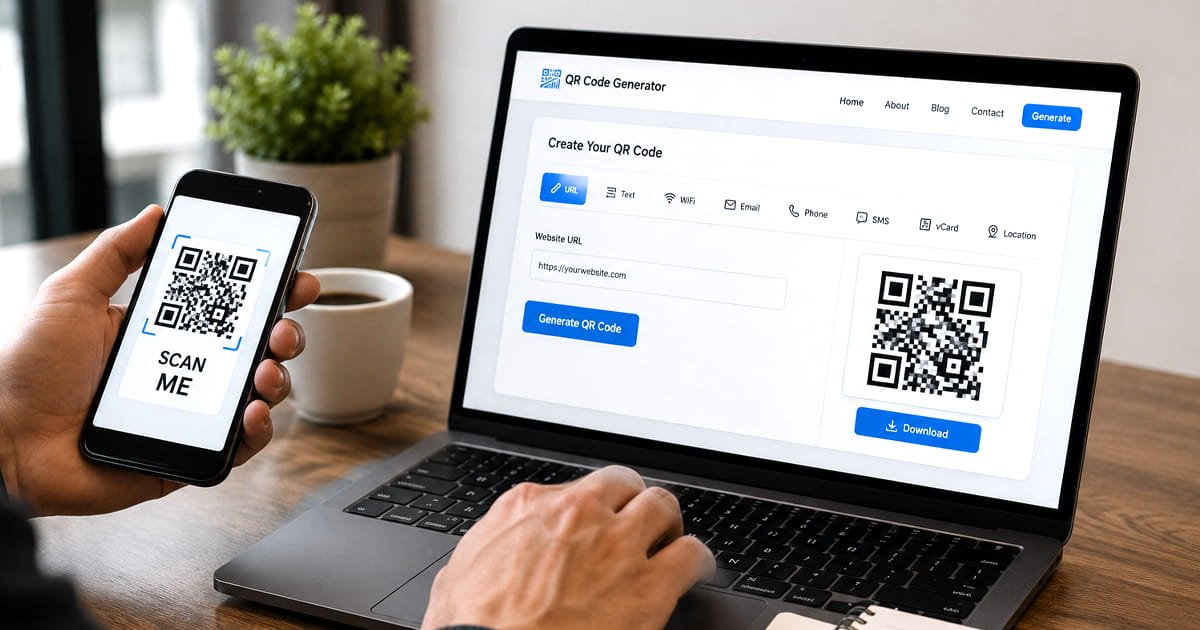
Learn how to create a QR code for a website, text, phone number, email, Wi-Fi and more. Follow this simple guide to make and test a QR code online.
QR codes have become a simple way to connect physical materials with digital information. You can find them on menus, product packaging, posters, visiting cards, business cards, event tickets, receipts, signs, and many other everyday items.
If you've ever wondered how to create a QR code, the process is much easier. You don't need coding knowledge or special software. With an online QR code generator, you can turn a website link, text, phone number, email address, contact information, or other supported content into a scannable QR code in just a few steps.
This guide explains how to make a QR code, how to choose the right type, how to create one for a website, and how to test it before sharing or printing it.
What Is a QR Code?
A QR code is a two-dimensional barcode that stores information in a pattern of small squares.
When someone scans the code with a compatible smartphone camera or QR scanner, the information stored inside it can be opened or displayed.
For example, a QR code can send someone to a website, display a message, provide contact information, or perform another supported action.
You don't need to understand the technical process behind QR codes to create one. A QR code generator handles the encoding and produces the scannable image for you.
What Can You Put in a QR Code?
QR codes can be used for more than website links. Depending on the generator, you may be able to create different types for different purposes.
| QR Code Type Common Use | |
| URL | Websites, landing pages and online stores |
| Text | Notes, instructions and other information |
| Phone | Quickly start a phone call |
| Open an email address | |
| SMS | Prepare a text message |
| Contact | Share contact information |
| Location | Share a place or location |
| Event | Provide event information |
| Wi-Fi | Share wireless network details |
| Payment | Share supported payment information |
Choose the type that matches the information you want people to access.
How to Create a QR Code Online
If you are looking for how to make a QR code, using an online generator is usually the simplest option.
You can create the code directly from your browser without installing additional software.
Step 1: Decide What You Want to Share
Before creating the code, decide what you want it to do.
For example, you may want to:
- Send visitors to your website
- Share a restaurant menu
- Provide contact information
- Open a WhatsApp conversation
- Display a short message
- Share an event location
- Provide product information
- Share a Wi-Fi connection
Knowing the purpose first helps you choose the appropriate QR code type.
Step 2: Choose the Right QR Code Type
Open a QR code generator and select the option that match your information.
For example, choose URL if you want the QR code to open a webpage.
If you are sharing contact information, choose a contact or vCard option if your generator provide one.
Using the appropriate type helps ensure that the information is interpreted correctly when someone scans the code.
Step 3: Enter Your Information
Enter the information you want the QR code to contain.
If you are creating a QR code for a website, copy the complete URL carefully.
Before generating the code, check:
- The website address is correct
- The spelling is accurate
- The URL points to the intended page
- The destination page is working
Even one incorrect character in a URL can send visitors somewhere else.
Step 4: Generate the QR Code
When you entered the information, generate the QR code.
You can use our free QR Code Generator to create QR codes directly in your browser.
The basic process is quick: enter your information, generate the code, and then check the result.
Step 5: Download the QR Code
When the QR code has been generated, save it in a suitable format.
If you are using it online, make sure the image remains clear when displayed.
For printed materials such as posters, menus, business cards, labels, or packaging, use a sufficiently high quality version so the individual QR modules remain clear.
Step 6: Test the QR Code
Always test your QR code before using it.
Scan it with a smartphone and make sure it opens or displays the information you entered.
If you are going to print a large number of copies, test the actual printed version before producing the complete batch.
This simple check can prevent problems later.
How to Create a QR Code for a Website
One of the most common uses for QR codes is sending people to a website.
If you are searching for how to create a QR code for a website, you can follow these steps:
- Copy the complete website URL.
- Open an online QR code generator.
- Select the URL or website option.
- Paste your website address.
- Generate the QR code.
- Scan it with your phone.
- Confirm that it opens the correct webpage.
- Download the finished QR code.
For example, a business could put its website QR code on a business card, flyer, product package, poster, or storefront sign.
The same approach works for a blog post, online menu, landing page, product page, booking page, or other web address.
How to Make Your Own QR Code
You don't need programming skills to make your own QR code.
The basic process is:
Choose the information → select the QR type → enter the information → generate the code → test it.
An online QR generator takes care of the technical encoding, so you can focus on making sure the information is correct.
If you frequently create QR codes for different purposes, keeping the original information organized can also make it easier to update or recreate them later.
How to Make a QR Code Easier to Scan
Creating a QR code is only part of the job. If you are going to put it on a printed or digital design, it also needs to remain easy to scan.
Use Good Contrast
Make sure there is a clear difference between the QR code and its background.
Avoid colors that blend together or make the individual modules difficult to distinguish.
Don't Make It Too Small
A QR code that is too small can be difficult for a phone camera to recognize.
The appropriate size depends on factors such as scanning distance, image quality, printing quality, and the amount of information encoded.
If people will scan the code from a distance, giving it more physical space is generally safer.
Leave Clear Space Around the Code
Don't place text, images, borders, or other design elements directly against the QR code.
Leave sufficient empty space around it so scanners can distinguish the code from its surroundings.
Avoid Excessive Styling
Some QR code generators allow you to customize colors, patterns, or logos.
Customization can make a QR code fit your branding, but readability should always come first.
A QR code that looks attractive but does not scan reliably isn't useful.
Test Your QR Code Before Printing
A QR code that works on your computer screen should still be tested before it is printed.
Scan it from the actual material where possible.
For example, test QR codes before using them on:
- Business cards
- Menus
- Posters
- Flyers
- Product packaging
- Labels
- Signs
- Event materials
If the printed code does not scan easily, increase its size or improve the contrast before producing more copies.
Where Can You Use QR Codes?
QR codes can be useful in many situations.
Businesses
Businesses can use QR codes to direct customers to websites, product information, contact pages, social profiles, review pages, or other online resources.
Restaurants
Restaurants can place QR codes on tables, menus, receipts, or signs to provide access to digital menus and other information.
Events
Event organizers can use QR codes for registration pages, schedules, maps, tickets, and event information.
Business Cards
A QR code can provide additional information without overcrowding a small business card.
Products and Packaging
Manufacturers can use QR codes to connect customers with product instructions, manuals, support pages, warranty information, or additional product details.
Wi-Fi Access
QR codes can also make it easier to share wireless network information. For the detailed process, see our separate guide on how to create a Wi-Fi QR code.
[Internal link: /blog/create-wifi-qr-code]
QR Code Safety: Check the Destination
QR codes are convenient, but they should be treated like any other link.
A QR code itself does not guarantee that its destination is trustworthy. A code could potentially direct someone to a fake website or another malicious destination.
Before entering passwords, payment information, or other sensitive details after scanning a QR code, check the destination carefully.
If a QR code appears unexpectedly and asks you to take urgent action, verify the information through an official website or another trusted source first.
Common QR Code Mistakes to Avoid
Before publishing or printing your QR code, check these common problems:
1. Incorrect URL
One incorrect character can send visitors to the wrong destination.
2. Poor Contrast
Low contrast can make the code harder for scanners to recognize.
3. Very Small Size
A tiny QR code may not scan reliably, especially when printed.
4. Excessive Customization
Too much styling can interfere with readability.
5. Skipping the Test
Always scan the final version before distributing it.
6. Broken Destination
If the QR code points to a webpage, make sure the page actually works.
7. Outdated Information
Check the destination from time to time if the QR code is being used for an important or long term purpose.
Frequently Asked Questions
How can I create a QR code?
You can create a QR code with an online QR code generator. Choose the type of information you want to share, enter the information, generate the code, and scan it to make sure it works correctly.
How do you create a QR code?
Choose an online QR code generator, select the appropriate QR code type, enter your information, and generate the code. Always test the finished QR code before using it.
How do I make a QR code?
To make a QR code, choose the information you want to share, enter it into a QR code generator, generate the code, and test it with a smartphone.
How do I make my own QR code?
You can make your own QR code online without programming knowledge. Enter your website URL, text, contact information, or other supported data into a QR generator and create the code.
How do I create a QR code for a website?
Select the URL option in a QR code generator, enter your complete website address, generate the code, and scan it to confirm that it opens the correct webpage.
Can I create a QR code for free?
Yes. Free online QR code generators can create QR codes without requiring you to install software. Available features can vary between different generators.
Do QR codes expire?
A QR code does not automatically expire simply because time has passed.
A static QR code can continue working as long as the information or destination it points to remains available. Services that use managed or dynamic QR codes may have their own account or subscription conditions.
Should I test my QR code before printing it?
Yes. Always test your QR code before printing or distributing it. If possible, scan the physical printed version as well.
Can I customize a QR code?
Many QR generators allow customization such as colors, patterns, or logos. However, readability should remain the priority.
Create a QR Code Online
Creating a QR code doesn't have to be complicated. Whether you need one for a website, contact information, text, Wi-Fi, or another supported purpose, an online generator can create it in just a few steps.
Try our free QR Code Generator to create a QR code directly in your browser.