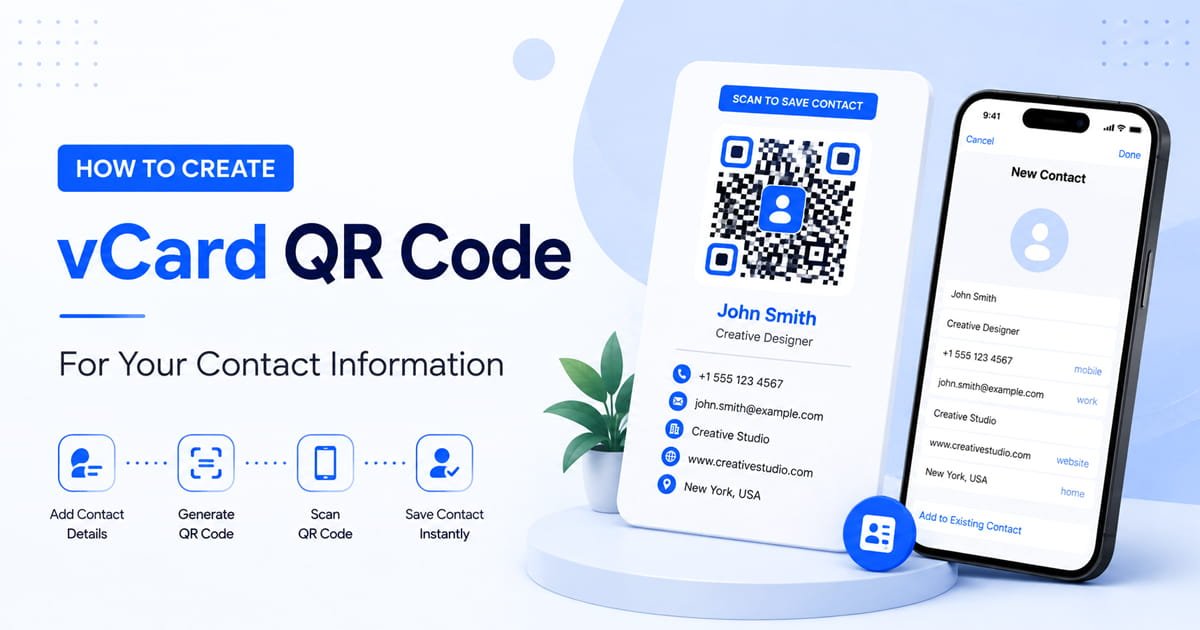
Create a vCard QR code to share your name, phone, email and other contact details with one scan. Learn how to make a QR code for a business card and test it before printing.
Sharing your contact details does not have to mean typing your full name, phone number, email address and company information into someone phone one field at a time.
A vCard QR code makes that process much easier. You can put your contact information into a QR code, add it to a business card or other material, and let someone scan it with their phone camera App. Depending on the phone and contact app, the scanned information can then be reviewed and saved as a new contact.
If you are looking for a vCard QR code generator, a contact QR code generator, or a simple way to create a QR code for a business card, this guide explains how it works and how to make one.
What Is a vCard QR Code?
A vCard QR code is a QR code containing contact information in the vCard format.
Instead of encoding only a website address, it can contain information such as:
- First and last name
- Phone number
- Email address
- Company or organization
- Job title
- Website
- Address
- Other supported contact information
When someone scans the code, their phone may recognize the contact information and give them an option to add it to their contacts.
This is why a vCard QR code is also commonly called a contact QR code or contact information QR code.
A normal URL QR code and a vCard QR code serve different purposes. A URL QR code is designed to open a web page, while a vCard QR code is designed to share contact information.
Why Use a vCard QR Code?
Think about what happens when you hand someone a traditional business card.
They have to keep the card, remember who you are and eventually type your details into their phone. It's an extra step, and sometimes the card simply gets lost.
A business card QR code can reduce that friction.
Someone can scan the code while meeting you and review the contact information without manually typing every detail.
This can be useful for:
- Business owners
- Freelancers
- Sales professionals
- Real estate agents
- Consultants
- Employees
- Event attendees
- Conference exhibitors
- Service providers
- Anyone who regularly exchanges contact information
You can also place a contact QR code on an email signature, presentation, flyer, brochure, name badge or other digital and printed material.
How to Create a vCard QR Code
Creating a vCard QR code is straightforward.
1. Open a vCard QR Code Generator
Start with a QR code generator that supports the vCard or contact option.
You can use our QR Code Generator and select the vCard option.
The important thing is to choose the contact/vCard type rather than the standard URL type.
2. Enter Your Contact Information
Enter the details you want people to receive.
Depending on the fields available in the generator, this may include your:
- First name
- Last name
- Phone number
- Email address
- Company
- Job title
- Website
- Address
You don't necessarily need to include every possible field.
Only add information that you actually want to share.
For example, a freelancer might use:
Name: John Smith
Company: Smith Design
Job title: Graphic Designer
Phone: +1 555 123 4567
Email: john@example.com
Website: https://example.com
Before generating the code, check every detail carefully. A QR code can accurately encode the information you provide, but it cannot correct a phone number or email address that you entered incorrectly.
3. Generate the QR Code
When your contact information is complete, generate the code.
The generator converts the contact information into a QR compatible format and creates the QR image.
At this point, don't immediately send it to a printer.
There is one more important step.
4. Scan and Test the Code
Use a smartphone camera or QR scanning feature to scan your new contact QR code.
Check that:
- The QR code scans easily
- Your name is correct
- Your phone number is correct
- Your email address is correct
- Your company information is correct
- The website opens correctly if you included one
- The contact information appears as expected
Testing takes a few seconds and can save you from printing hundreds of incorrect business cards.
How to Put a vCard QR Code on a Business Card
A QR code for a business card should be useful without taking over the entire design.
Place the code somewhere that is easy to see and scan.
You can add a short instruction next to it, such as:
Scan to save my contact
or:
Scan to add me to your contacts
This gives the person a clear reason to scan.
Avoid placing the QR code directly against other graphics, text or borders. Leave some empty space around it so the scanner can distinguish the code from the rest of the design.
If the card will be printed, generate a sufficiently large, high-quality version and test the printed result before ordering a large quantity.
vCard QR Code vs Regular QR Code
These two QR codes are related, but they aren't designed for the same job.
Regular URL QR Code
A URL QR code is useful when you want someone to visit:
- A website
- Online store
- Landing page
- Menu
- Registration page
- Social profile
If you want to learn about creating a normal QR code, see our guide on how to create a QR code.
vCard QR Code
A vCard QR code is better when the main purpose is sharing contact information.
For example:
Business card → vCard QR code → contact information
Whereas:
Business card → URL QR code → website
The right option depends on what you want the person to do after scanning.
Can You Use a vCard QR Code Without a Business Card?
Yes.
A business card is one of the most obvious uses, but it is not the only one.
You can use a contact QR code on:
Email Signatures
Add a QR code to your professional email signature so someone can scan it and access your contact information.
Event Badges
At conferences, trade shows and networking events, a contact QR code can make exchanging details easier.
Flyers and Brochures
Businesses can place a contact QR code on printed marketing material for people who want to save contact information.
Presentations
Professionals can put a contact QR code on the final slide of a presentation.
Digital Documents
A QR code can also be included in PDFs and other documents where someone may want to save your contact details.
Is a vCard QR Code Free?
It depends on the generator you use.
Some QR code generators provide contact or vCard generation without requiring a paid subscription, while other services offer additional features through paid plans.
If your only goal is to encode basic contact information into a QR code, you may not need complicated features.
For a simple contact sharing use case, choose a generator that lets you create the code easily and gives you a downloadable result.
Do vCard QR Codes Expire?
A static vCard QR code generally contains the contact information directly inside the QR code.
That means there isn't necessarily a subscription or hosted web page involved.
However, the exact behavior depends on how the QR code was generated.
If your phone number, email address or job information changes later, a static contact QR code containing the old information will still contain the old information.
That's why it's important to check your details before printing the code on hundreds of business cards.
Static vs Dynamic Contact QR Codes
There is an important distinction between static and dynamic QR codes.
A static vCard QR code contains the contact information directly in the code. If the information changes, you normally need to create a new code.
A dynamic QR system works differently. The QR code can point to a destination controlled by a service, allowing the destination or information to be changed later depending on the service.
For a simple personal business card, a static vCard QR code can be enough.
If you expect your contact information or destination to change frequently, investigate the features of the particular QR service before choosing a format.
Common vCard QR Code Mistakes
A few simple mistakes can make a contact QR code less useful.
Entering the Wrong Phone Number
Always check the number before generating the final code.
Using an Incorrect Email Address
One missing character can make an email address unusable.
Making the Code Too Small
A code that looks fine on a large monitor may not work reliably when printed at a very small size.
Covering the QR Code With Design Elements
Keep text and graphics away from the actual QR pattern.
Not Testing Before Printing
This is probably the easiest mistake to avoid.
Scan the final version before distributing it.
Sharing Too Much Information
You do not need to put every personal detail into a contact QR code. Share only what is appropriate for your purpose.
Frequently Asked Questions
What is a vCard QR code?
A vCard QR code is a QR code that contains contact information in a vCard format. When scanned, a compatible phone or contact application can recognize the information and offer options for saving it as a contact.
What is a contact QR code?
A contact QR code is another common name for a QR code designed to share contact information. Many contact QR codes use the vCard format.
How do I create a vCard QR code?
Choose the vCard or contact option in a QR code generator, enter your contact details, generate the code and scan it with your phone to test the result.
Can I create a QR code for my business card?
Yes. A vCard QR code is one option for a business card because it can contain contact details such as your name, phone number, email, company and website.
Can a vCard QR code save a contact?
A compatible smartphone or contact application can recognize the vCard information and provide an option to save the contact. The exact screen and behavior can vary between devices and apps.
Can I put a vCard QR code on an email signature?
Yes. A contact QR code can be added to an email signature so recipients can scan it when they want to save your details.
Do I need an app to scan a vCard QR code?
Many modern smartphones can scan QR codes using their built in camera or standard scanning features. The exact behavior depends on the device and software.
Can I change a static vCard QR code later?
If the contact information is encoded directly into a static QR code, changing your details normally means creating a new QR code. A dynamic QR service may offer different options.
Create Your vCard QR Code
If you want to share your contact information without making people type everything manually, a vCard QR code is a simple option.
Enter your contact details, generate the code and test it before using it on your business card, email signature, flyer or other material.
You can create your vCard QR code online using the QR Code Generator and choose the vCard option.
If you need a different type of QR code, you can also read our guide on how to create a QR code. For wireless network sharing, see our guide on creating a Wi-Fi QR code.
The key is to choose the QR type based on what you want the person to receive after scanning.